Image Filters
Apply stunning filters to your images: grayscale, sepia, blur, brightness, contrast, and more.
Drop your image here or click to upload
Supports PNG, JPG, WebP, BMP, GIF
Related Tools
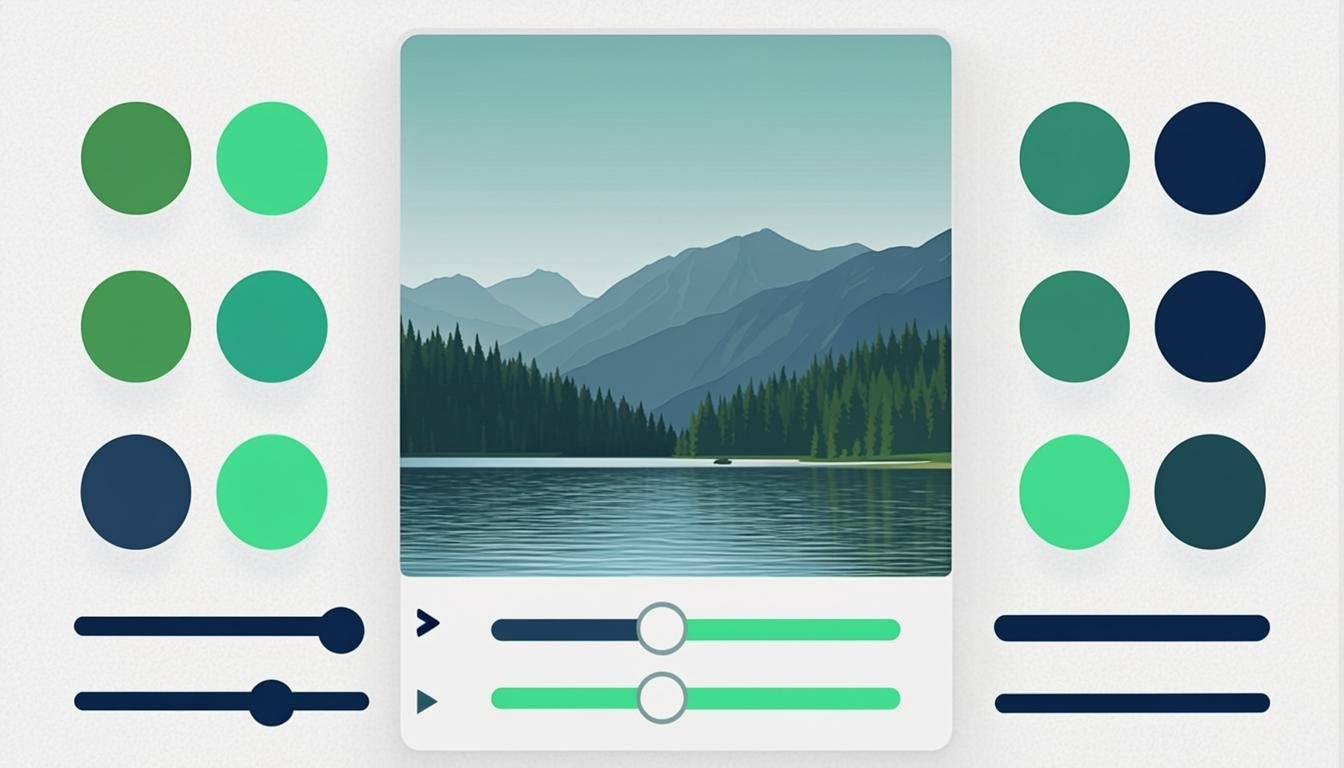
About This Tool
Apply professional-looking filters to photos directly in your browser: brightness, contrast, saturation, warmth, sharpness and preset looks. It is the quick middle ground between doing nothing and opening a full editor — ideal for marketplace photos, blog images and social posts that need a consistent look. All processing is local and non-destructive until you download: the preview updates live and your original file stays untouched on disk.
How to Use This Tool
- Drop your image into the preview area.
- Adjust the sliders — brightness and contrast first, then saturation and warmth; changes apply instantly.
- Or start from a preset (each one is a fixed slider combination you can then fine-tune).
- Compare with the original using the before/after toggle.
- Choose the output format (JPG for photos, PNG when you need to keep flat colors exact) and download.
Advantages & Use Cases
Give 12 product photos the same brightness so a shop grid looks uniform, warm up a dim restaurant shot before posting it on Google Business, or sharpen a slightly soft scan for a PDF report. Bloggers keep a signature look by applying the same custom settings to every header image.
Supported Formats & Recommendations
- Save filtered photos as JPG at quality 88: filters introduce subtle gradients that JPG handles well.
- Keep PNG for UI screenshots where you only adjusted brightness — text stays pixel-crisp.
- Heavy sharpening on JPG can create halos; sharpen before compressing and preview at 100% zoom.
How We Test This Tool
We validate each release with a color-chart photo: brightness/contrast changes must shift values linearly, saturation at 0 produces a true grayscale, and the before/after toggle must show pixel-identical originals. Presets are verified to match their documented slider values exactly.
Related Tools You May Like
Helpful Resources
Frequently Asked Questions
Do filters damage the original photo?
No. Edits live in the preview until you download a new file; the original on your disk is never modified. Each download is a fresh, fully re-encoded image.
Which preset should I use for product photos?
Start with a neutral boost — slight contrast and brightness up, saturation untouched. Strong color casts misrepresent the product and increase returns.
Can I apply the same settings to many images?
Note your slider values, then load each image and reproduce them — or use Batch Compress for size and this tool for the hero shots. A batch-filter mode is on the roadmap.