Image Resizer
Resize images online for a target layout or web component, then verify the output dimensions.
Resize images to any dimension. Perfect for social media, websites, and print.
Drop your image here
or click to browse • PNG, JPG, WebP, GIF
Related Tools
About This Tool
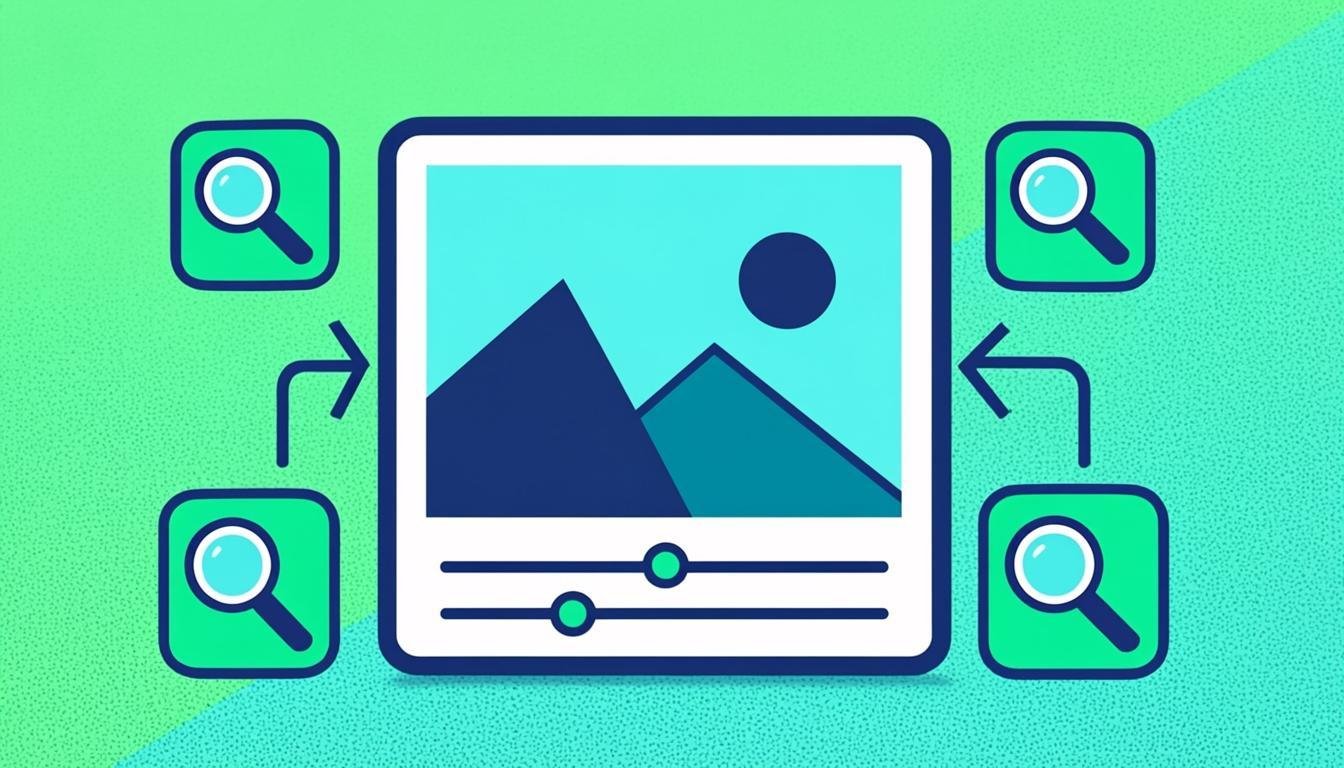
Resize images to exact pixel dimensions or by percentage, locally in your browser. Typical jobs: fit a photo to a form's exact requirement (like 600×600 for a visa application), shrink a 4000 px camera file to 1600 px for the web, or produce consistent thumbnail widths for a shop grid. The tool can keep the aspect ratio automatically, pad to an exact canvas with a background color, or crop-to-fill when exact both-dimensions output is required.
How to Use This Tool
- Drop your image.
- Enter the target width or height — the other side updates automatically when the lock is on.
- Pick a mode: fit (keeps ratio), exact canvas (pads with your chosen color), or stretch (distorts — rarely wanted).
- Choose the output format; resampling to JPG at 85 keeps photos sharp.
- Resize and download. For multiple target sizes, run the tool again from the same original — never resize an already-resized image twice.
Advantages & Use Cases
Meet marketplace photo specs (Amazon 1600 px, eBay 1600 px longest side), prepare app store screenshots at exact resolutions, or batch-normalize a blog's images to a 1200 px content width. Consistent dimensions make grids and galleries align perfectly.
Supported Formats & Recommendations
- Downscaling is visually safe at any ratio; upscaling beyond 150% starts to soften — prefer re-shooting or an AI upscaler for big enlargements.
- PNG for UI screenshots and logos, JPG for photos, WebP when size matters most.
- For padding, PNG or JPG with a solid white/black background both work; pick PNG to keep text crisp.
How We Test This Tool
A release passes when a 4000×3000 input resized to 800 px wide is pixel-compared against the reference resampler (no visible aliasing), exact-canvas mode centers correctly with the chosen background, and EXIF orientation is applied before resizing so rotated phone photos come out upright.
Related Tools You May Like
Helpful Resources
Frequently Asked Questions
Does resizing reduce quality?
Downscaling with a proper resampling filter actually makes images look sharper at their new size. Quality loss mainly comes from re-encoding: use quality 85+ for JPG output.
How do I get an exact 600×600 image from a 3:2 photo?
Use the exact-canvas mode: set 600×600, and the tool fits the photo inside and pads the short sides with your background color. For a full-bleed result, use crop-to-fill instead.
Should I resize before or after compressing?
Resize first, then compress — compressing a smaller image is faster and gives the encoder a cleaner result than compressing large and shrinking later.