🧰Tools 🗜️ Compression🔄 Conversion✏️ Editing📄 PDF Tools⚡ Optimization🧰 All Tools (46)
📱 Android App 📝 Blog 👋 About

PDF Tools · Free · No signup

PDF to PNG Converter

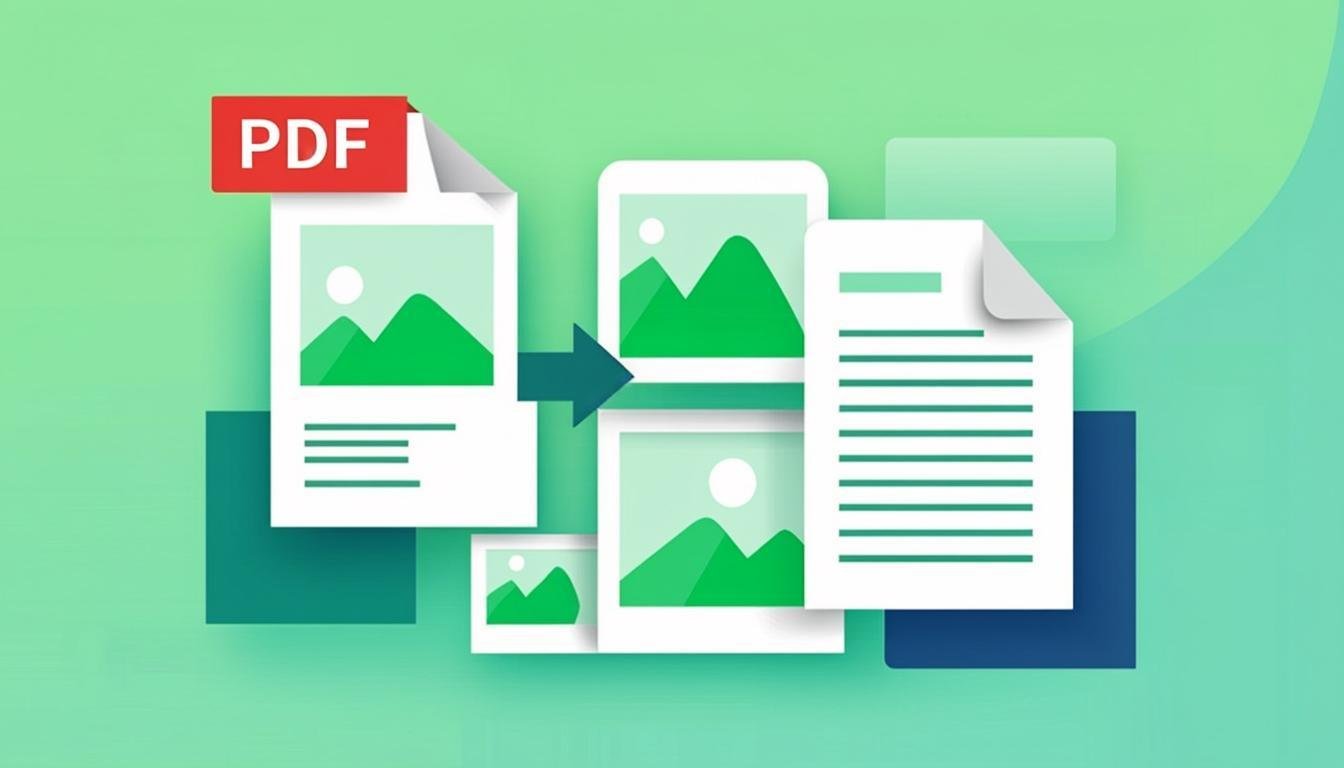
Render every page of a PDF into a crisp PNG image — directly in your browser. Perfect for previews, slides, documentation and anywhere you need page images instead of a document. Pick the resolution (up to 3×), convert up to 50 pages per file, and download them instantly. Nothing is uploaded.

Drop your pdf to png files here or click to browse

You can also paste from the clipboard (Ctrl+V)

Resolution selector replaces the quality slider.

🔒 100% private: your files are processed by your own browser and never leave your device.

How it works

  1. Drop a .pdf file onto the box (click to browse works too).
  2. Choose the rendering scale: 1× screen size, 1.5× default, 2–3× for print-quality PNGs.
  3. Press Convert. The PDF renderer (pdf.js) runs locally and draws each page to PNG.
  4. Download page PNGs individually (page-1.png, page-2.png…) or grab them all.

Features

Resolution control

Render at 1×, 1.5×, 2× or 3× — 3× turns an A4 page into a ~250 DPI image, sharp enough for print.

Up to 50 pages per file

Long documents are handled page by page with per-page downloads.

Faithful rendering

Text, vectors and embedded images are drawn by Mozilla's pdf.js — the same engine as Firefox.

Zero uploads

Sensitive contracts and invoices are rendered on your device only.

Preview in the list

Every page reports its output size as soon as it is rendered.

Supported formats. Accepts .pdf (unencrypted). Outputs one .png per page. Encrypted PDFs requiring a password are not supported — remove protection legally on the originating app first.

Common use cases

Limitations (honest ones)

This is a rasterizer: text becomes pixels and is no longer selectable. Very large scale factors on huge pages consume memory — stay at 2× for A0 posters. The first conversion loads the ~1.7 MB pdf.js engine once per session. Encrypted (password-protected) PDFs cannot be opened.

Frequently asked questions

Which scale should I choose?

1.5× suits web use (about 110 DPI on A4); 2× is comfortable for zoomable docs; 3× approaches print quality but produces big files and uses more memory.

Is this different from PDF to Image?

PDF to Image is the general-purpose version (multiple output formats). This page is dedicated to PNG with explicit resolution control — handy when you always want PNG at a specific scale.

Why can't I open a password-protected PDF?

Rendering requires decoding the content, which needs the password. Handling protected documents would require you to bypass protections — out of scope for a legal, client-side tool.

Are the page images selectable text?

No — PNG is pixels. If you need the text itself, use a PDF-to-text workflow or copy from the original document.

Keep going

Related tools
CompressoPanda Android app icon

On mobile?

Same tools, fully offline, on Android

The CompressoPanda Android app ships 36 tools that run with no connection at all — including target-size compression, conversion and PDF essentials.